
Load your photos to Watermark Software

Step1. Click "Next Step" to editing window, then click "Renmae" tab to rename all of your images in seconds.
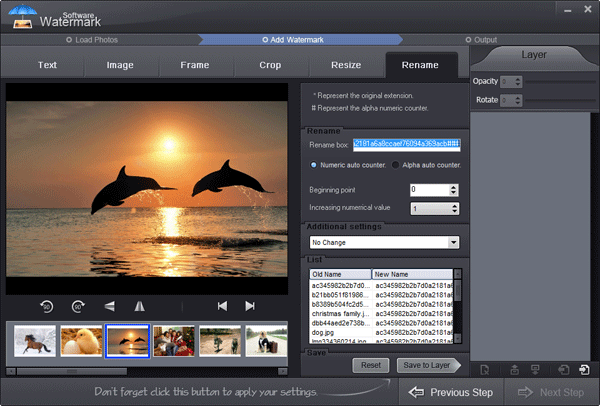
Step2. Learn more about batch rename function
Note: You cannot change filename extension to directly change its format on this step.
If you want to rename one image file, you just need to input character, numeric, or alphanumeric value directly into Rename Box.
If you want to sort several images numerically, you should input symbol # and then select "Numeric auto counter", just like shown below.
If you want to sort a large amount of images alphabetically, you should input symbol # first and then select "Alpha auto counter".
If you want to keep original filename of images and sort them numerically/alphabetically, you need to input * first and add symbol # after it, as the picture shown below.
If you want to rename and sort a large amount of images (more than 100 images) at once, you need to input ###.
Previous: How to batch resize images?
Next: How to save a custom watermark template for next time?



Watermark Software Tips
Use picture watermark to protect picture
Use text watermark protect your photo
A great watermark creator, create watermark to your photos
Choose a proper watermarking software
Create watermark to photos protect copyright is very popular
Protect image copyright when you upload photo on internet
Choose a photo watermark software for picture protection
Use photo watermark protect photos
Watermark image to protect your photo copyright
Add Watermark Graphics to Photos
Add image watermark for your photo
Watermark picture with image, text and logo
Batch watermark photos to save your time
The digital watermarking also as simply watermarking
Convert video to GIF image format
Watermark your photos to protect your photo's copyright
How to Add Text to GIF in an Easier Way
Discourage theft images add copyright watermark in images
We add watermark means put watermark info into photos
A lot of people are learning how to watermark photos
Make photo web more attractive by insert watermark to them
Do you want to make watermark for your photos
Image protection becomes more and more important
Other Tips