

Part 1. One Minute Watermarking Picture with Image, Text, Logo and Signature
Part 2. How to Watermark Picture with Text
Step 4. Apply watermark on photo
Do you worried about your shared picture's safety, because most of users who add watermark to your picture that means this guy have the copyright of your picture. So you need protect all of your pics before sharing, the effective protection way is watermark. Now please use image, text or logo embedded into their pictures. The image, text or logo which embedded into pictures called watermark.
Watermark picture is a special mark, usually these marks are unique, that is watermark whcih on behalf of the individual, groups or company's identity, and only that person who watermark picture can use the mark, just like the name, with strong representation. Watermark picture is widely used, it is often used for copyright protection. Add your particular watermark to some objects such as pictures, so no one can use your pictures unauthorized.
To protect the copyright of your picture, watermark picture with image, text, logo or signature is very necessary for you. And now, choose a watermark software tool to add watermark to picture right now.
Watermark software is a professional image watermark creator. It can help you add text,image and logo to your pictures to protect your photo copyrights, only picture watermark software can verifies your pictures are protected from unauthorized use. The image watermark software is not only photo watermarking tool, but also can add pretty frames for your like, crop images, batch rename and photo resize etc. Watermark software is a fast batch photo processor and support all popular formats.
The first, please download the tool: Watermark Software below

Step 1, Start.
aunch, choose the picture which you want to watermark and click "Next" to edit window.

Step 2, Add text watermark for watermark picture.
Watermark software's simple interface will tell you how to set here to adjust aspect ratio of text watermark. You can adjust Opacity for your need (0-100) and adjust rotate for your need (0-360). You can choose "General" or "Tile" to place you text watermark on images, general is to place one text on images, tile is to fill full text on images. (Tile is a strong protect copyright mode)Alignment setting to control text's azimuth on images.
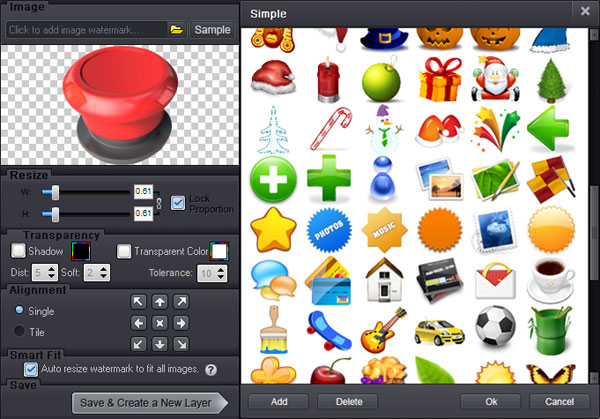
Step 3, Text Setting
Here, you can set the text words effect. Set width and height, adjust font to choose color, set background color, text shadow. Set underline, bold or italic and other settings. Click "OK" to Next.

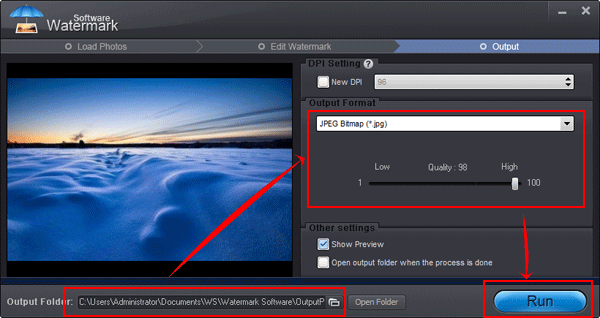
Step 4.
Click "Run" after you finished your editing. And soon later, the whole process will be OK.
This is the tutorial of how to watermark picture with text. Click here(http://www.watermark-software.com/tutorial.html), you will know the tutorial of how to watermark picture with image and other tutorials
Click here(http://www.watermark-software.com/) to know More information about Watermark Software or have a free trial below:
Still have trouble on watermark picture? Please Contact Us >>
Watermark Software (photo edition) : This watermark tool provides professional image protecting solution for your online photos. The exclusive image processing technology lets you able to watermarking 500 photos within 1 minute.
Video to Picture: an simple software to help you convert any video files to seriate pictures
Picture Watermark Software - protect picture copyright quickly
How to Convert YouTube to Picture - it will be extremely easy with Video to Picture Converter, which enables you to convert all key video formats to seriate pictures or animated GIF.
Add Text to Picture - show your infotmaion on your shared pictures.
Put Logo on Pictures at Once - Put logo on pictures at once to protect your copyright.
How to Copyright Pictures - The copyright picture is protected object what holder does not would like anybody use it without his permission.
Digital watermarking in Wikipedia