

Latest months, a lot of people are learning how to watermark photos. Why? As more and more internet users from the world, a lot of pictures appear over the internet. Thousands of strangers are using the photos freely, and maybe some people of them used illegally. So, have you ever thought to protect your photos over the internet to let those strangers know that photos belong to you only? To prevent your photos from unauthorized and illegal using, a great idea is to add watermark to your photos and it may be the most effective and simple way for you. Usually, we choose watermark photos with text and images, and this article will tell you how to watermarking text or image into your photos.
The photo watermark is actually a special symbolized image or text (can be logo, sign, symbol, signature, animated image, etc) which could be embedded into photo. The symbolized image and text can be designed at your will to make your pictures or photos special. There are some forms of symbolized image such as opaque, transparent, or maybe company logo, personal features. A watermark tells the consumer who made the photo, assuring a certain quality. OK, now, let's get into the how to watermark part.
When you want to protect your photos with embed some words, signature or date, watermark text is the first choice. Watermark text enable users to type words on the picture to protect its copyright, it is very easy to put text to picture. With a proper watermarking software application, users could design the text effect at their will. The text watermark will directly tell users the information of photos and prevent from unauthorized or illegal using.
As the text watermark, image watermark also is special symbolized image .The users can embed them into their pictures, and they also can design the symbolized image at their will to make the pictures special. Watermark image is very popular as it is not only an image watermark embedded into photos, but also a great background picture for your photos.
To protect copyright of your works, we have recommend a great choice - Watermark Software, it's a professional and powerful watermarking software program, and it can help you add text watermark and image watermark to your pictures to protect their copyrights. Only can verify your pictures are protected from unauthorized using. Watermark Software is not only watermarking program, also can add pretty frames at your like, crop images, rename, photo resize, etc. The most important is support batch mode, watermarking 500+ pics within 1 minute.
Step 1
Launch watermark software, choose the photo which you want to add image watermark and click "Next" to edit window, then, click "add image" to image edit page.
Step 2, Add files
Select exist watermarking image or new image from your hard disk. Click "Browse" for selecting new images for hard disk, click "OK" to select existing images.
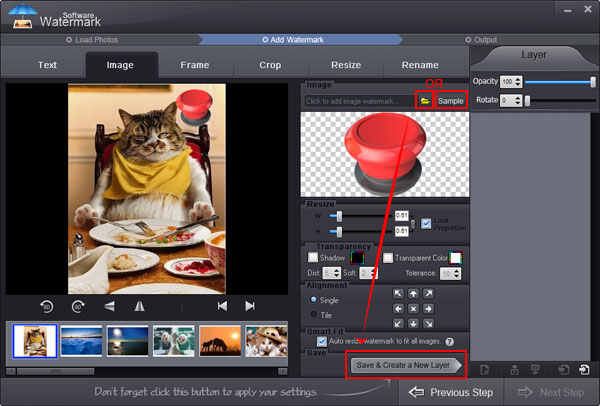
Step 3, Edit
Watermark software's simple interface will tell you how to set here to adjust aspect ratio of image watermark (Default: W=1, H=1), selected lock box to binding width and height for your photo. You can adjust Opacity for your need (0-100) and adjust rotate for your need (0-360). You can choose "General" or "Tile" to place you text watermark on images, general is to place one text on images, tile is to fill full text on images. (Tile is a strong protect copyright mode)Alignment setting is to control text's azimuth on images.

Step 4
Click "Run" after you finished your editing. And soon later, the whole process will be OK.
Click here to know More information about Watermark Software.
Still have trouble on watermarking? Please feel free to Contact Us
Watermark Software (photo edition) : This watermark tool provides professional image protecting solution for your online photos. The exclusive image processing technology lets you able to watermarking 500 photos within 1 minute.
How to watermark video - and convert video format in one solution
How to watermark animated GIF - a simple software all watermark to GIF animation
How to put watermark on photo - to protect online or sharing photos safety.
How to watermark and batch convert images
Watermark graphics - is small image watermark, can be personal signature, company brand, etc.
Your iris as photo watermark - canon apparently sees an opportunity to automate the watermarking process on the camera--making use of biometric data courtesy of the photographer's iris.