

Illegal photo copies are chaos on the Internet. There are always a group of people who like to use any online photos without paying or permission. So be sure that you are not a victim of it by applying watermark to your photos.
Digital watermarking is the process of embedding information into an image. The information in the image or photo typically identifies the author or copyright holder. Digital watermarks add copyright protection to photos. However, it can be time-consuming to add a watermark to a large number of photos manually. Luckily, many bulk watermark tools out there can lend a hand.
Batch watermarking is the only way to solve the issue. Faster speed in batch watermark processing can be a delightful thing. If a watermark creator can help adjust the size and relative position of watermarks in each photo, then it will save a great deal of time. Watermark-saving can also be useful, so that you don’t need to create the reserved watermarks again for future usage.
Part 1: Batch Watermark Creator - PhotoShop
Part 2: Batch Watermark Creator
Part 3: Comparison of These Batch Watermarking Tools
Speaking of graphic editing, the first software that comes to mind is PhotoShop. When it comes to support for batch watermark, PhotoShop performs not bad.
Let’s take CS5 as the example of applying batch watermark in PhotoShop (It needs six steps as a whole).
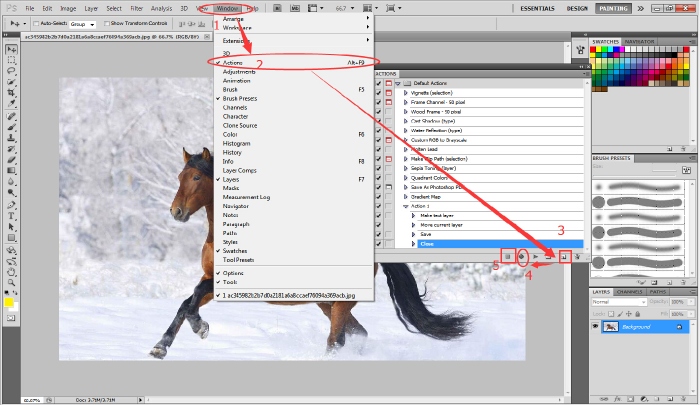
First, load one photo into CS5.
Second, choose [1] [Window] > [2] [Action], and create a new action.
Third, select the action you built and click [4] [Begin recording].
Fourth, add your desired text watermark to the photo by clicking [T] tool. Select text layer, type into your signature. Then adjust the position of it, save it in another output folder and close it.
Fifth, click [Stop recording].
Sixth, open a bunch of photos in CS5. Play the action you just recorded.
Good Points: As a powerful photo editing tool, you can not only add watermark, but also beautify your photos. All OS supports with multilanguage.
Weak Points: It won’t allows image watermark in bulk. And the operations is a bit complex.
This is a simple photo watermarking software for bulk watermark function. It’s a three-step software with watermark template saving function (It needs three steps to go). Download it by click button below.


After install it, you can see the main interface.
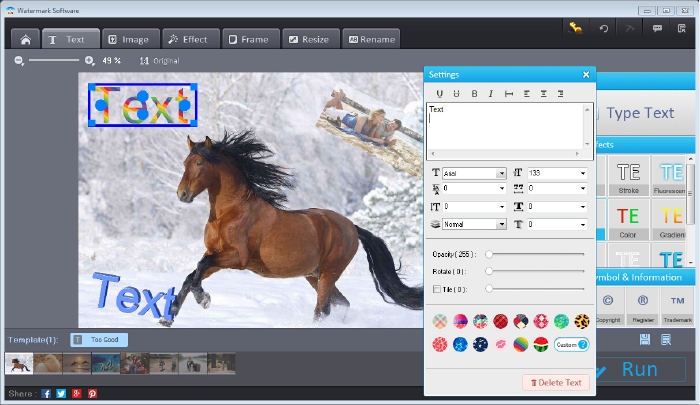
First, add photos to it (or add all of photos in a folder)
Second, choose among watermark choices to add text watermark and image watermark.
Third, click [Run] and wait for a few seconds, the process will be done.
Good Points: Easy to use. Template function is very thoughtful. The speed of watermarking is pleasing - achievement of 300 photos in 1 min.
Weak Points: Only supports English and Windows OS.
If you don’t like these two batch watermark creators, then just look at other software such as, Gimp, Visual Watermark and uMark and so on.
Batch watermark Gimp is the most popular tool on the Internet. In order to do it, you need to download a Text Watermark Plugin script and have it installed on Gimp. Then select Script-Fu > MyScripts > TextWatermark to do it. Although Gimp is free, it’s more complex than PS in the operations.
Visual Watermark is also a famous watermark software, which allows you to bulk watermark images free. Text watermark and image watermark are all available. But previous operations need to be deleted one by one if you need to add a totally different watermark.
uMark is a new bulk watermark tool. It has only six watermark samples for your choosing. And the interface and operations need time to get used to.
We make a comparison of the above tools and list as below for your pick.
Side |
PhotoShop CS5 |
Watermark Software |
Gimp |
Visual Watermark |
uMark |
Batch Image Watermark |
Not allowed |
Perfectly Support |
Need PlugIn |
Good Support |
Support |
Price |
$459.99 |
$29.90 |
Free |
$19.95 |
$29.00 |
Easiness |
2 star |
5 star |
1 star |
3 star |
3 star |
Smart Fit |
Can’t auto fit |
Extremely Smart |
Can’t auto fit |
A bit Smart |
A bit Smart |
Watermark Library |
No |
Yes. |
No |
Yes. |
No |
Total Score |
7 |
47 Recommended |
17 |
34 |
26 |
| Download Now > |
It’s easy for us to know that Watermark Software stands out in batch watermarking from the form. And we believe it will serve you better.
Still have questions on batch watermark photos? Please feel free to Contact Us
Watermark Software (photo edition) : This watermark tool provides professional image protecting solution for your online photos. The exclusive image processing technology lets you be able to watermark 300 photos within 1 minute.
How to rename photos - in batch for better organization
How to watermark and batch convert images
Batch watermark photos - to save your time
Create watermark - to your photo with watermark software
Add image watermark - to your photos within 3 steps
Digital watermarking A digital watermark is a kind of marker covertly embedded in a noise-tolerant signal such as audio or image data.